

Teachers and staff
Enroll in a live training
Sign in, find the training for your school, enroll, and put every session in your calendar.
-
Sign in to the Contentment platform
Go to contentment.org and click "Sign In".
Enter your email address and click "Continue".
If you see "Error - Email Not Registered", ask your administrator to invite you to the platform first.
Open the email titled "Verify your Login" and click "Verify your Login". A new tab opens and takes you into the platform.

The Contentment platform sign-in screen 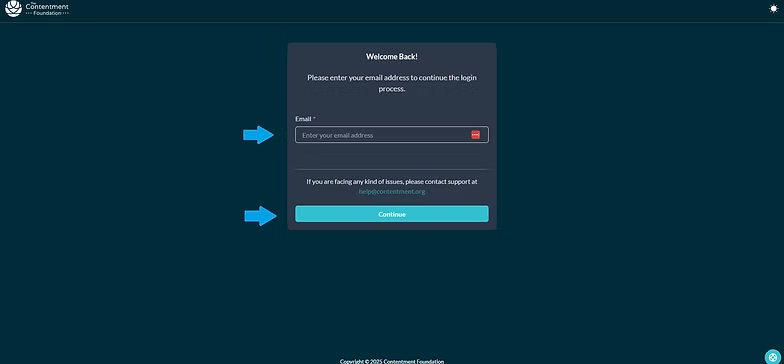
Entering your email address to continue 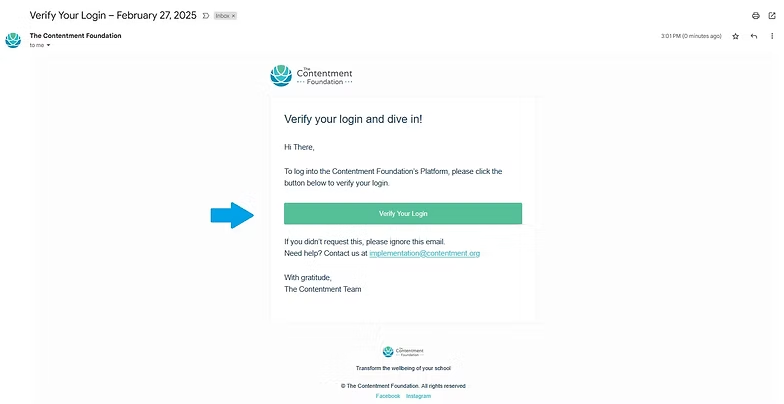
The Verify your Login email 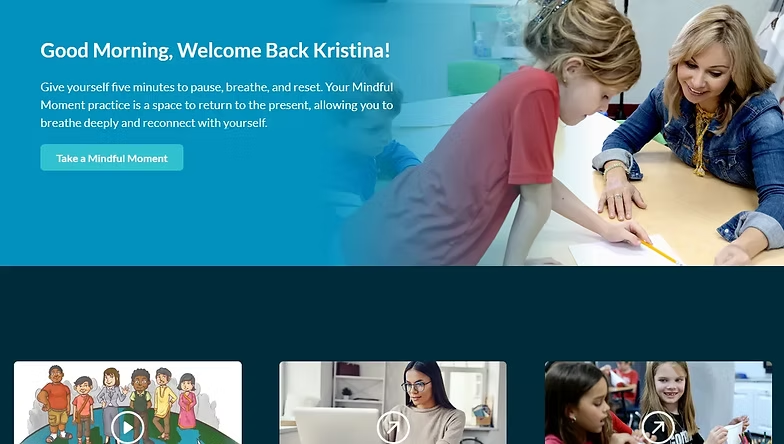
The platform opening in a new tab after verification Swipe to see all 4
-
Go to the Live Training page
Hover over "Training" in the top toolbar, then click "Live Training".
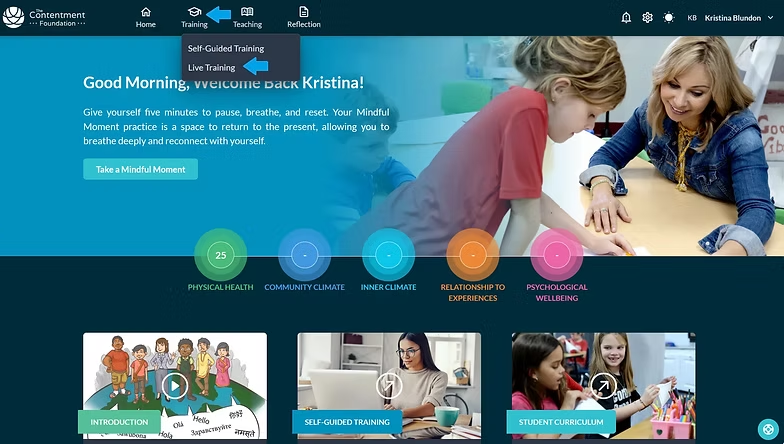
-
Enroll in the live training
Find the live training for your school and click "View Details".
Click "Enroll".
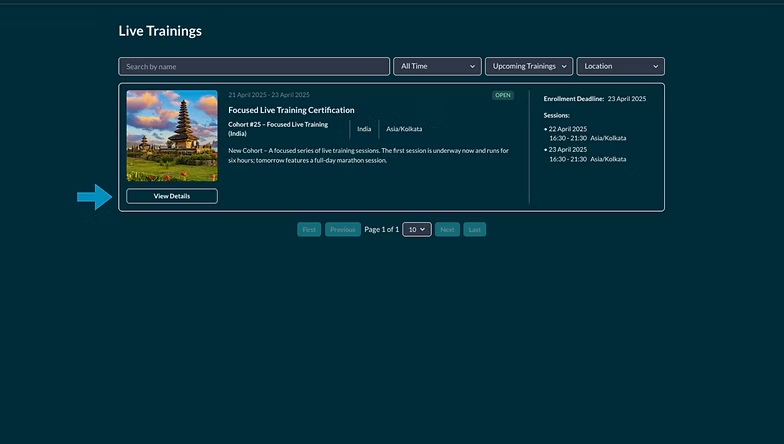
The live training listing with View Details 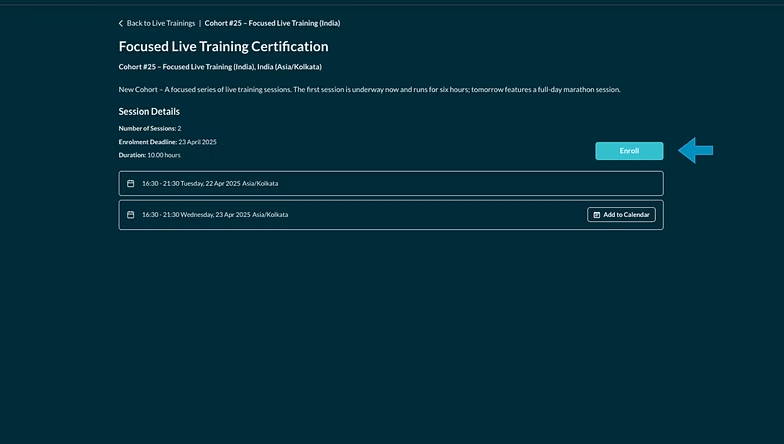
The Enroll button on the training details page Swipe to see all 2
-
Add each session to your calendar
Click "Add to Calendar" and pick your calendar.
Do this for every session, not just the first one. Each is added separately, so repeating this is what stops one quietly slipping past you.
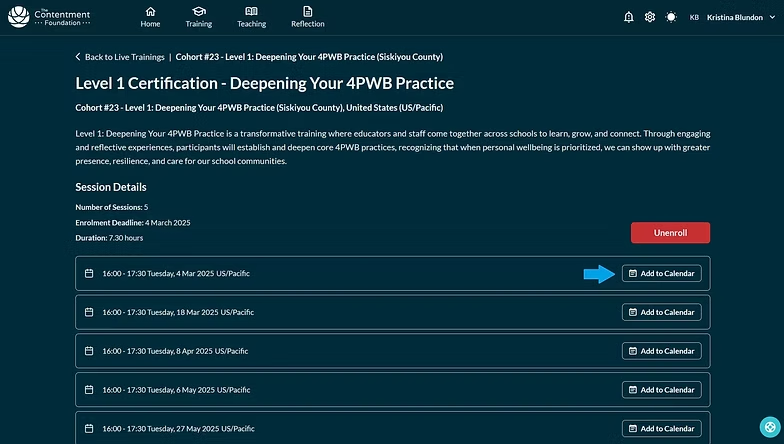
The Add to Calendar button on a session 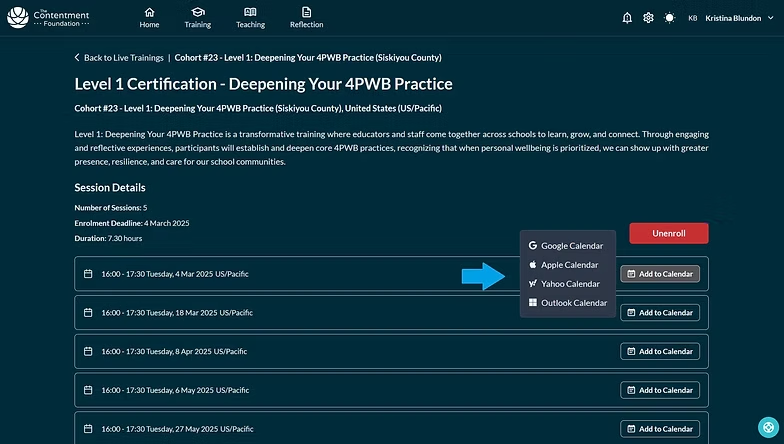
Choosing which calendar to add the session to 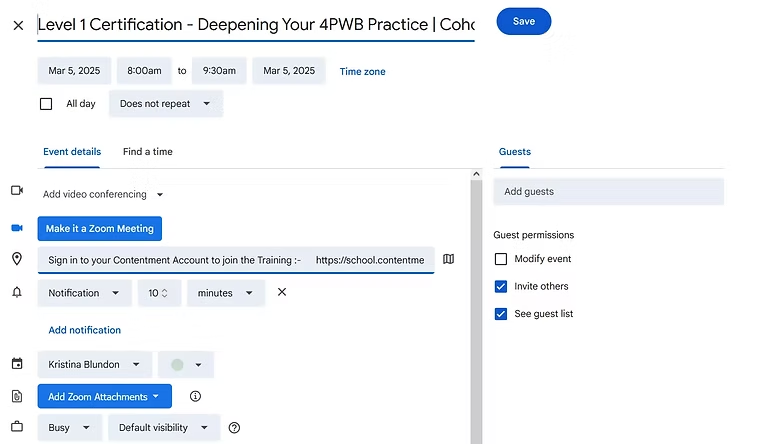
All training sessions added to the calendar Swipe to see all 3