

Teachers and staff
Complete your teacher or staff sign-up
Accept your invitation, create your account, and find your way around your profile for the first time.
-
Accept your invitation and create your account
Open your email and find the message titled "Staff Invitation".
Click "Get Started". A new tab opens and verifies your email address automatically.
Enter your first and last name, agree to the Terms and Conditions, then click "Create Account".
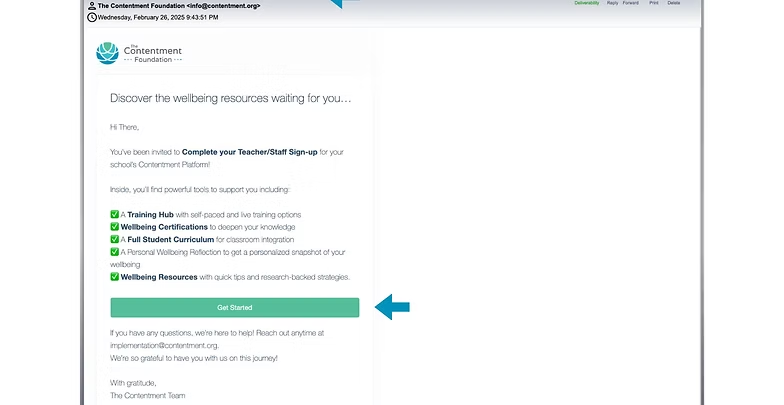
The Staff Invitation email with the Get Started button 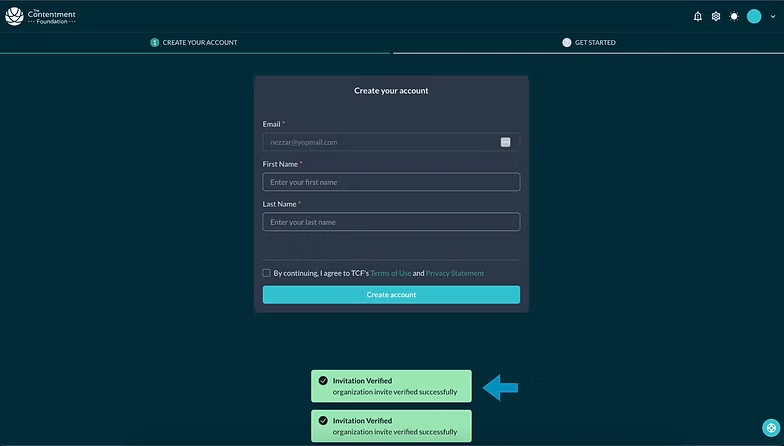
The account creation form with name fields 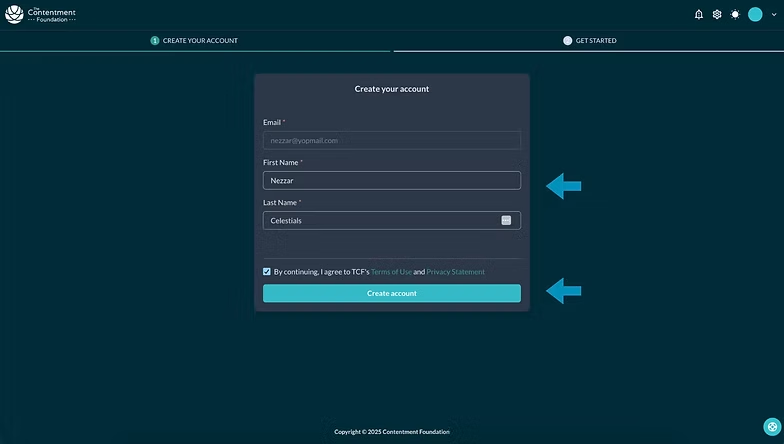
Agreeing to the Terms and Conditions before creating the account Swipe to see all 3
-
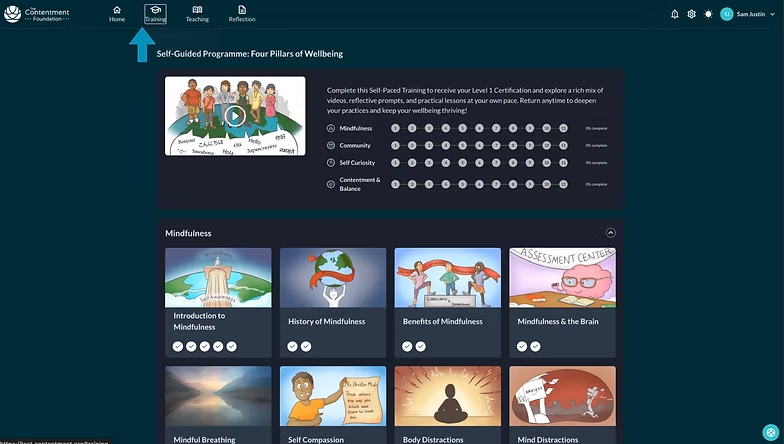
Watch the intro video
A short introductory video plays, then takes you through to the home page. You do not need to do anything while it runs.
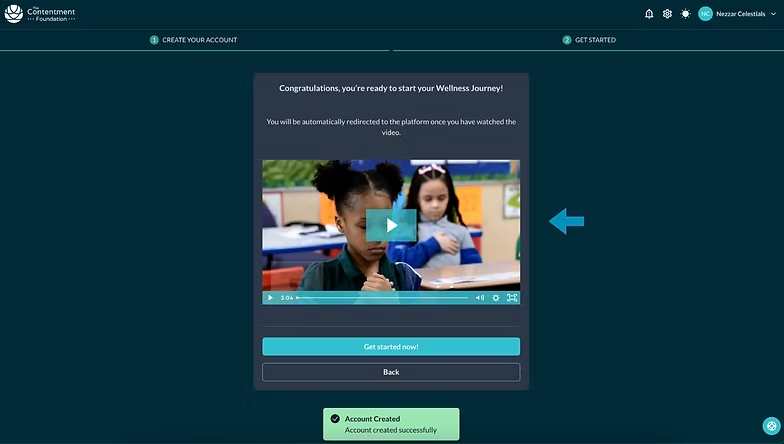
The introductory video playing after sign-up 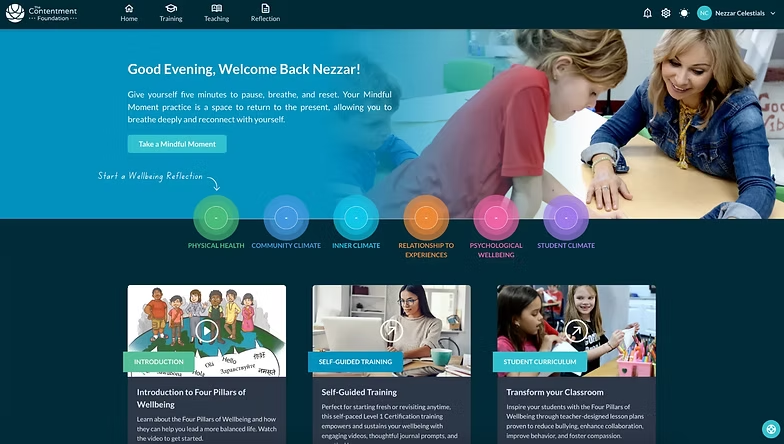
The platform home page shown after the video Swipe to see all 2
-
Change a member's role
Click the three dot menu next to a member's name.
Select "Modify Roles", tick or untick the roles you want, then click "Save".
The three dot menu beside a staff member 
Selecting Modify Roles from the menu 
The role checkboxes in the Modify Roles panel 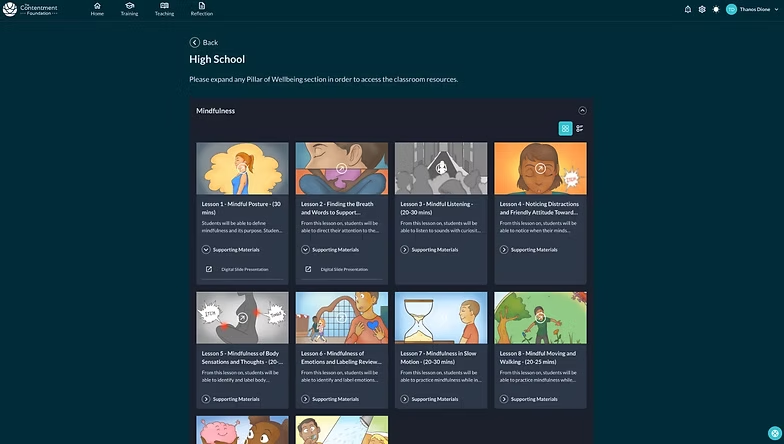
Saving the updated roles 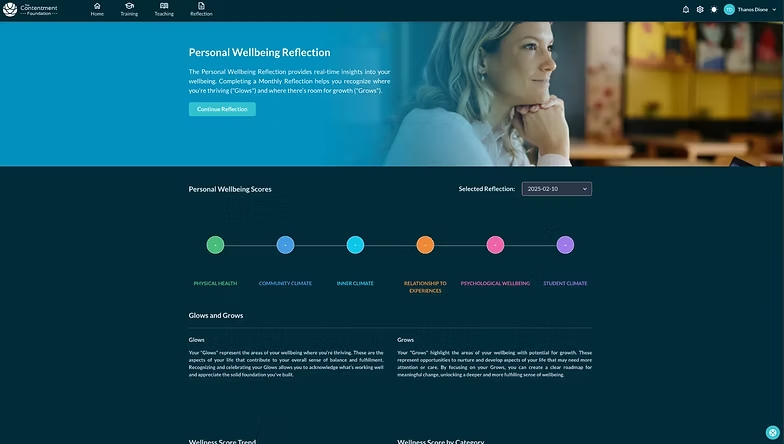
The member list showing the new role Swipe to see all 5
-
Profile and account settings
Click your profile icon in the top right corner to update your details.
Your certificates live here too. The first time you open them you will be asked to confirm your name.
Staff members can see their organization details but cannot change them.
To deactivate or delete an account, contact your school administrator.
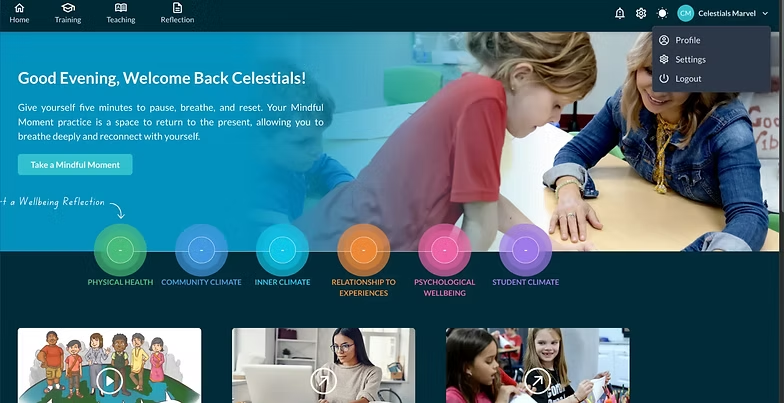
The profile icon in the top right corner 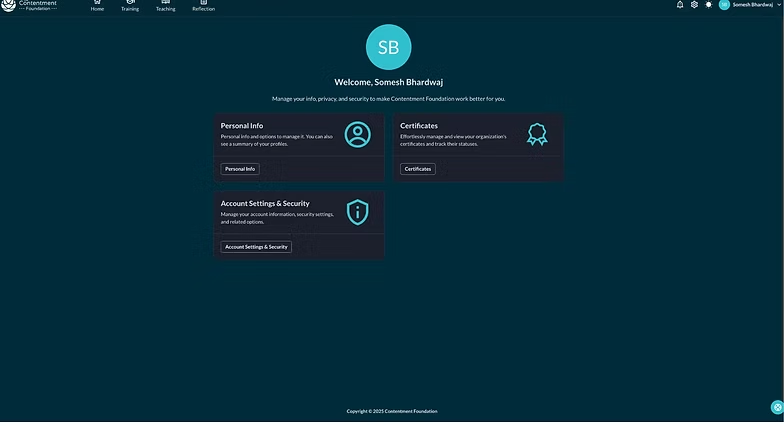
The profile and account settings panel 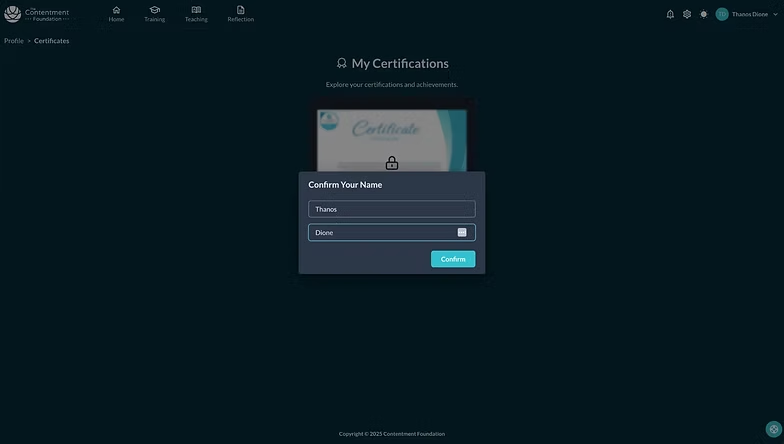
Confirming your name to access certificates Swipe to see all 3
-
You are all set
Explore the training materials and teaching resources whenever you are ready.
Come back to the Help Center any time you want a hand with something.